Getting started

A simple start.
For both sides of the team.

Choose the route that matches your role. Employees join an existing company; administrators set it up.

Company administrator and employees illustration
For administrators

Create. Invite. Organise.

  1. Sign in through the administrator route and create your company.
  2. Add workplace locations and verify their attendance settings.
  3. Invite the team with the correct email addresses and PINs.
  4. Review attendance and reports. Add shifts if you need them.
Read the complete setup guide
For employees

Your invitation is the start.

  1. Get your invitation PIN from your company administrator.
  2. Use the employee route and confirm your invited email.
  3. Check the company and workplace assignment.
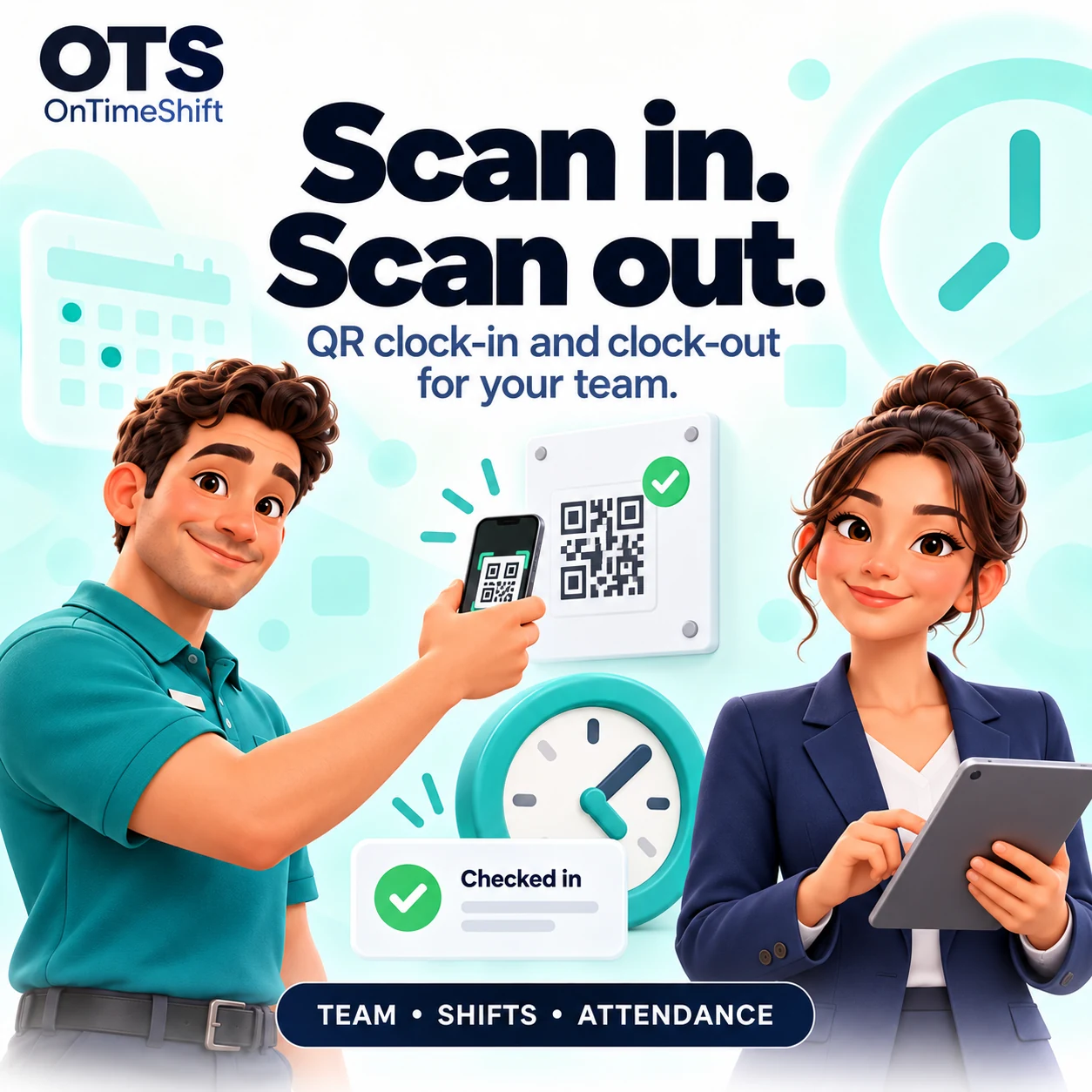
  4. Clock in with the workplace QR and record the rest of your day.
Read the employee guide
Illustration of QR attendance

Before your first workday.

Do I need to build a schedule first?

No. Attendance works without planned shifts when your team and permitted locations are configured.

Does every employee pay?

No. A paid plan is a company subscription. The company owner chooses and purchases a suitable tier.

Where do I get my invitation PIN?

Your company administrator provides it. Use the email address associated with that invitation.

Can employees sign in through this website?

The public website provides product information and help. Employee attendance is completed in the Android app. The separate administrator web portal is not yet available here.

The OTS Help Centre

Help at every step.

From your first invitation to your monthly report. Illustrated guides for administrators and employees.

Visit Help Centre
Company subscription

Choose in the app.

The company owner can open Plans in OnTimeShift, choose monthly or yearly billing and review the local price in Google Play.

OnTimeShift is currently in testing. If you need app access, contact support. This website does not take payments.

Ask about app access →